

Video is the default product format on every major platform. TikTok, Instagram, YouTube, Pinterest – all optimized for video. Google Shopping shows video results. Amazon surfaces video on high-converting PDPs.
Most ecommerce product pages still show 4 static images and a description written in 2022.
The gap between where consumer attention is and where most product pages live is the opportunity. This guide covers everything: why video converts, technical implementation on Shopify and WooCommerce, shoppable video formats, mobile optimization, and how to produce video content at catalog scale.

Why Video on Product Pages Increases Conversions
The data is consistent across studies and platforms:
| Metric | Impact | Source |
| Add-to-cart rate with video vs. without | 80–144% higher | Wyzowl, 2024 |
| Consumers more likely to purchase after watching product video | 73% | Animoto, 2024 |
| Return rate reduction when customers watch product video | 25–40% | Zappos internal data (widely cited) |
| Mobile conversion on video-enabled pages vs. static | 3x higher | Vidyard, 2024 |
The mechanism is clear. Video communicates what static images can’t: scale, texture, movement, fit in motion, ease of use, size relative to body or environment. A customer watching a dress move understands how it will feel to wear it. A customer looking at a flat lay is guessing.
Return rates drop because video sets accurate expectations. Conversion rates rise because video closes the confidence gap between “I like this” and “I’m buying this.”
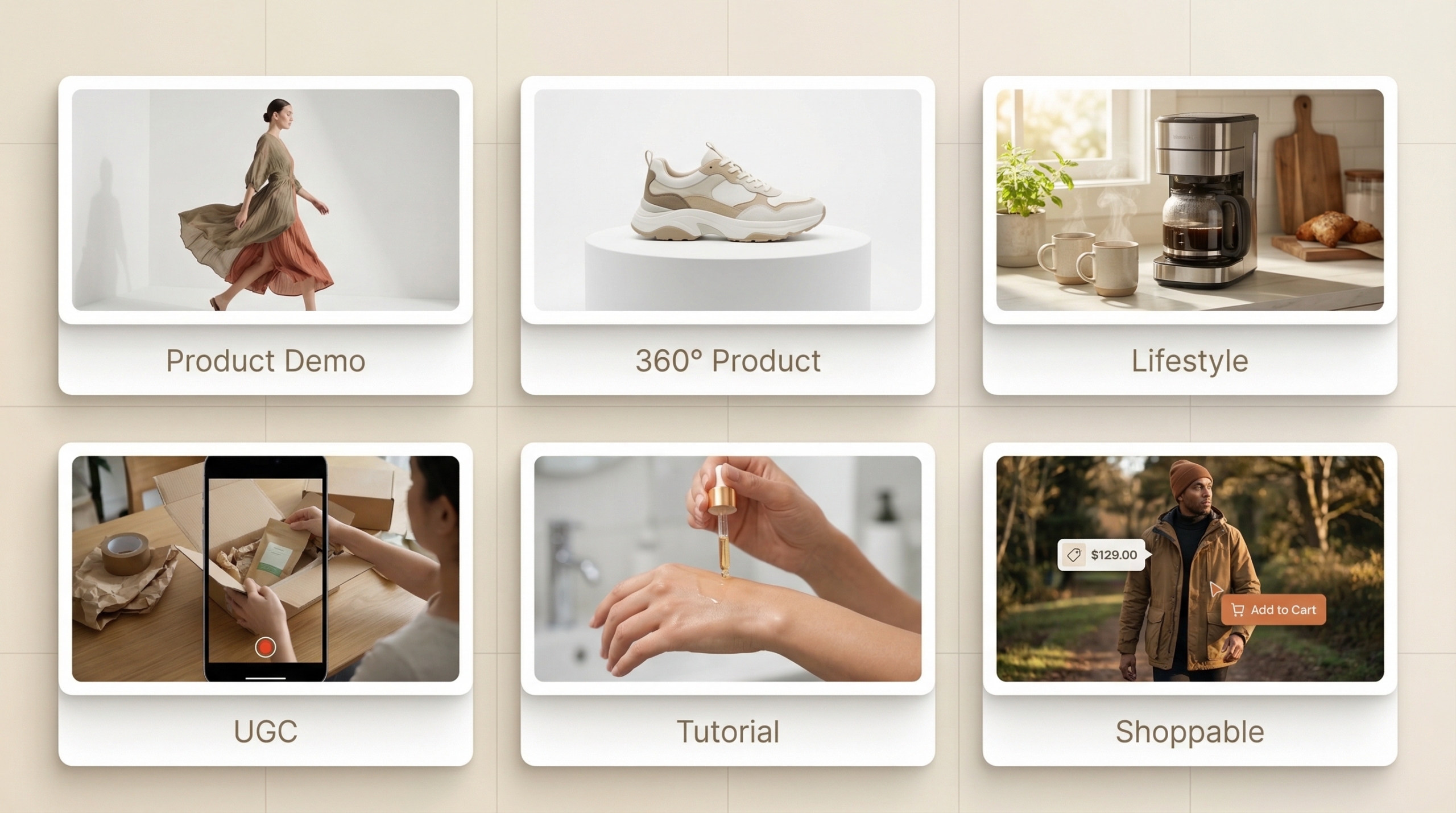
Types of Product Videos That Convert
Before implementation, understand which format matches which use case.
| Video Type | What It Shows | Best For | Conversion Lever |
| Product demonstration | Product being used. Model wearing and moving. Operation walkthrough. Assembly in context. | Apparel, appliances, furniture | Highest-leverage type for conversion |
| 360° product | Product rotates on neutral background, all angles shown without model | Footwear, bags, electronics | Faster to produce than demo video |
| Lifestyle context | Product in natural use environment – coffee maker on kitchen counter, tent at campsite | Home, outdoor, food & bev | Builds desire and aspiration |
| User-generated | Real customers using the product | All categories | Highest trust signal. Often outperforms branded video |
| How-to/tutorial | Usage instruction, application technique, assembly guide | Skincare, tools, DIY | Reduces pre-purchase uncertainty |
| Shoppable | Any format above with embedded product links, add-to-cart, price overlays | All categories | Turns passive viewing into active shopping |
How to Add Video to Shopify Store
Shopify supports video natively on product pages from version 2.0 themes onwards.
Method 1: Native Shopify Product Media
Shopify allows video files (MP4, .mov) in the product media section. Videos appear in the product image gallery alongside product photos.
- Go to Products in your Shopify admin
- Select the product
- In the Media section, click Add media
- Upload your video file (MP4 recommended, max 1GB, up to 10 minutes)
- Shopify hosts and serves the video automatically
Recommended specs for Shopify native video:
| Spec | Recommendation |
| Format | MP4 (H.264 codec) |
| Resolution | 1080p minimum, 4K if available |
| Aspect ratio | 1:1 for product grid, 4:5 for portrait, 16:9 for landscape |
| File size | Compress to under 100MB for faster load |
| Audio | Include for demos, mute for background/ambient product videos |
Method 2: YouTube/Vimeo Embed
For longer product videos, embed from YouTube or Vimeo to avoid hosting costs and leverage platform CDN.
In your Shopify product description or a page section:
<iframe width=”100%” height=”400″
src=”https://www.youtube.com/embed/[VIDEO_ID]?autoplay=0&mute=1&rel=0″
frameborder=”0″ allowfullscreen>
</iframe>
Method 3: Shopify Product Video Integration via App
For advanced shoppable video features, native Shopify video has limitations. Third-party apps add:
- In-video product tagging and direct add-to-cart
- Autoplay and loop controls
- Analytics (view rate, engagement, conversion attribution)
- Shoppable video feeds (TikTok/Instagram-style scrollable video)
Popular Shopify shoppable video apps: Tolstoy, Videowise, Firework, ShopOS for AI-generated video integration.
[IMAGE: Three screenshots of the same Shopify product page, each showing a different video integration method. Screenshot 1 (Native): video thumbnail in the product gallery alongside photos, standard Shopify player controls. Screenshot 2 (YouTube Embed): embedded YouTube player in the product description area, clean and responsive. Screenshot 3 (App – Shoppable): video with floating product tags, “Add to Cart” hotspots, and an engagement analytics overlay in the corner. Caption: “Three ways to add video to a Shopify product page. Native for simplicity. Embed for longer content. App for shoppable features.”]
How to Add Shoppable Videos to Shopify
Shoppable video is the format that most directly drives conversion. The customer watches, spots a product, clicks, and adds to cart – without leaving the video.
Step 1: Select a shoppable video platform. Native Shopify doesn’t support in-video tagging. You need a third-party integration. Evaluate on: ease of product tagging, mobile performance, analytics depth, and checkout flow.
Step 2: Connect product catalog. The shoppable video platform pulls from your Shopify product catalog. Products link to specific video timestamps or overlay positions.
Step 3: Create or upload video content. For shoppable video, demonstration and lifestyle formats work best. The viewer needs to see the product in context to want to interact with it.
Step 4: Tag products in video. Use the platform’s interface to drop product tags at relevant timestamps. A styling video showing three outfits tags each garment when it appears on screen.
Step 5: Embed on product pages or homepage. Most shoppable video platforms provide an embed code or Shopify app block. Place on PDPs for product-specific video, on collections pages for discovery, on homepage for brand introduction.
Step 6: Track performance. Measure: video view rate, click-through rate from video tags, add-to-cart from video, purchase conversion, revenue attributed to video.
Shoppable video placement strategy
| Placement | Content Type | Goal |
| Homepage | Brand story + bestsellers feed | Brand introduction and discovery |
| Collection pages | Styling content showing multiple products from the collection | Inspiration and cross-sell |
| Product pages | Product-specific demonstration | Conversion confidence |
| Cart page | Related products in shoppable feed | AOV increase |
[IMAGE: A website wireframe showing four page types (Homepage, Collection, PDP, Cart), each with a shoppable video placement highlighted. Homepage: a horizontal video feed across the hero section. Collection: a vertical scrollable video feed in the sidebar. PDP: video embedded in the product gallery. Cart: a “Complete the look” video carousel below the cart summary. Caption: “Four placements. Four different conversion goals. Shoppable video works across the full site, not just product pages.”]
Add Video to WooCommerce Website
WooCommerce handles product video with more flexibility but less out-of-the-box support than Shopify.
Method 1: Featured Video via Product Gallery Plugin
WooCommerce doesn’t natively show video in the product gallery without a plugin. The most widely used solution:
Install the WooCommerce Product Video plugin (by WooCommerce or third-party options like YITH WooCommerce Featured Video).
- Install and activate the plugin
- Go to Products → Edit Product
- In the Product Gallery section, find the Video URL field
- Paste your YouTube or Vimeo URL
- The video appears as the first item in the product gallery
Method 2: Direct video embed in product description
Add this to the product description (in HTML mode):
<video width=”100%” controls poster=”[THUMBNAIL_URL]”>
<source src=”[VIDEO_FILE_URL]” type=”video/mp4″>
</video>
Replace [VIDEO_FILE_URL] with the URL of your hosted video file and [THUMBNAIL_URL] with a poster image shown before the video plays.
Method 3: Video background for product pages
For lifestyle brands using Elementor or a page builder:
- Create a custom product template
- Use the video background feature on the hero section
- Link to a short, looping ambient video of the product in use
- Overlay product name, price, and add-to-cart button
WooCommerce video hosting considerations
Host video on an external CDN (YouTube, Vimeo, Cloudflare Stream, or Bunny.net) rather than your own server. Self-hosted video on shared hosting creates page speed issues that hurt both conversion rate and SEO rankings.
For Cloudflare Stream: stream videos directly from Cloudflare’s CDN at ~$5 per 1,000 minutes of video delivered – cost-effective and fast globally.
Ecommerce Video Hosting: Options Compared
Where you host product videos affects page speed, cost, and feature capabilities.
| Platform | Cost | Pros | Cons |
| YouTube | Free | CDN included, no hosting cost, SEO benefit (Google surfaces YouTube videos) | Competitor recommendations shown after yours end, YouTube branding, less analytics control |
| Vimeo Pro | $20–75/month | No competitor recs, clean player, privacy controls, good analytics | Bandwidth limits on lower tiers |
| Cloudflare Stream | $5/1,000 min delivered | Fast global CDN, direct API integration, no player branding | Requires technical setup, no built-in discovery |
| Bunny.net Stream | $1/1,000 min delivered | Cheapest CDN option, good performance | Less feature-rich player |
| Dedicated ecommerce platforms (Tolstoy, Firework, Videowise) | $50–500/month | Shoppable video features, conversion analytics, Shopify/WooCommerce integration | Cost, vendor dependency |
For most ecommerce brands: Vimeo Pro or Cloudflare Stream for hosting + a dedicated shoppable video platform for in-video shopping features. Avoid self-hosting video on your store’s server.
[IMAGE: A decision flowchart for video hosting. Start: “Do you need shoppable video features?” Yes → “Use a dedicated ecommerce video platform (Tolstoy, Firework, Videowise) for shoppable + Cloudflare Stream or Vimeo for standard hosting.” No → “Is budget the primary constraint?” Yes → “Bunny.net Stream ($1/1K min) or YouTube (free).” No → “Do you need analytics control and no competitor branding?” Yes → “Cloudflare Stream or Vimeo Pro.” No → “YouTube (free, CDN included).” Caption: “The video hosting decision in 60 seconds.”]
How to Reduce Product Returns With Video
Returns cost ecommerce brands 20–65% of item revenue when fully loaded (processing, restocking, markdown on returns, shipping). Video is the most effective single intervention for reducing return rates.
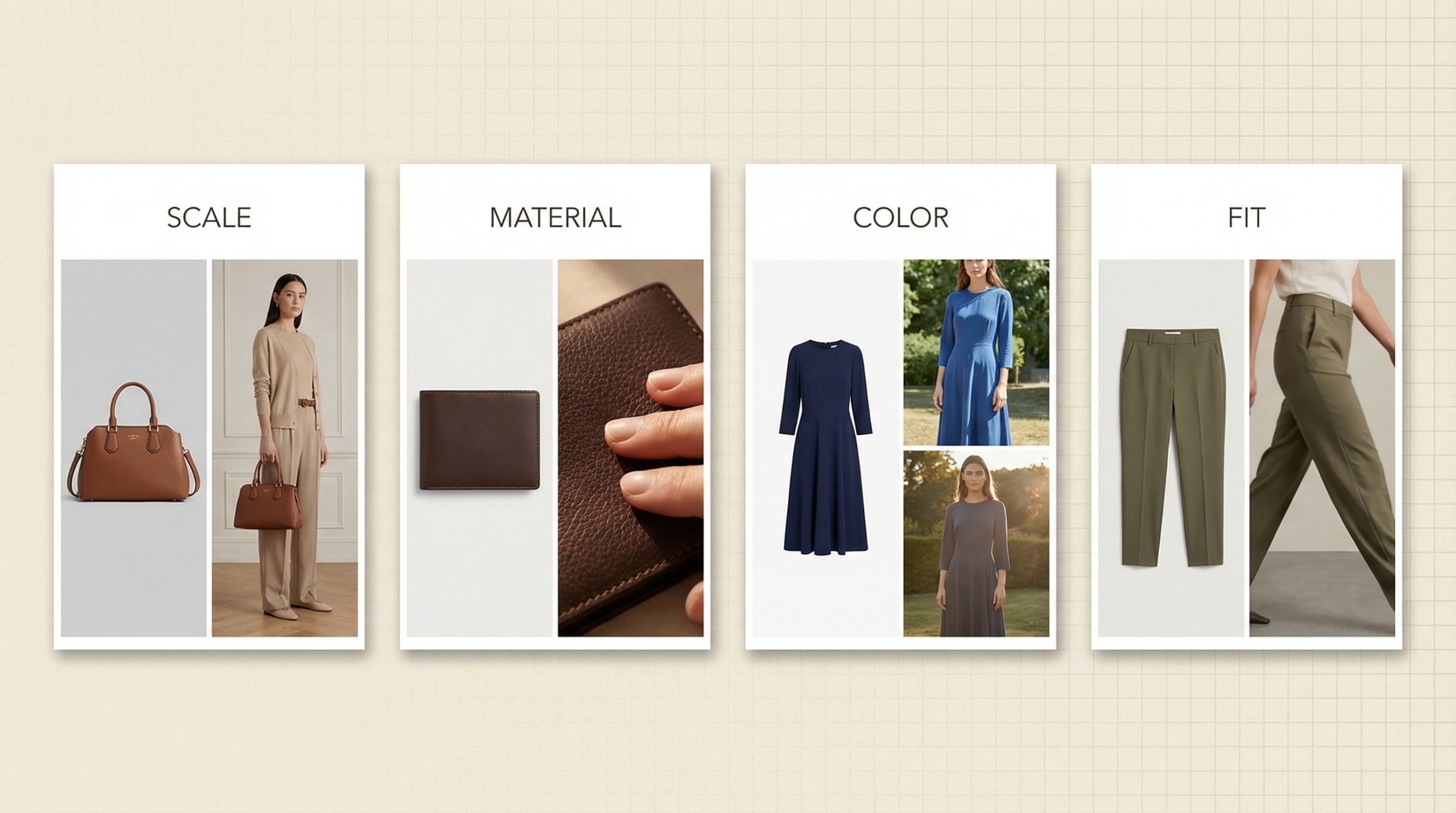
Customers return products primarily because reality didn’t match expectation. Video closes each expectation gap:
| Expectation Gap | How Video Closes It |
| Scale | Show the product next to a known reference. A bag held by a model whose height you can see. Furniture in a room with visible ceiling height. Customers who understand actual scale buy correctly. |
| Material | Close-up video of fabric in natural and studio light. Leather texture in motion. Glass transparency shown through slow rotation. Material behavior in video communicates quality signals that stills can’t. |
| Color | Video shot in natural light shows how product color shifts across lighting conditions. A dress that’s navy in the studio looks purple in evening light. Show both. |
| Fit and movement | Clothing on a moving model. How it behaves walking, sitting, bending. Whether it creases at the waist, whether the hem hits correctly, whether sleeve length reads long or short. Movement reveals fit truth. |
Implementation priority: Start with your highest-return-rate categories. Add demonstration video with attention to the specific expectation gap causing returns. Measure return rate at 30 and 60 days post-implementation.
Optimize Product Videos for Mobile Ecommerce
62% of ecommerce traffic comes from mobile. Most ecommerce video is still optimized for desktop.
Mobile video specs
| Spec | Recommendation |
| Aspect ratio | 9:16 (vertical) for Instagram/TikTok repurposing, 1:1 for universal compatibility, 4:5 for Shopify mobile |
| Resolution | 1080×1920 for 9:16, 1080×1080 for 1:1 |
| File size | Under 30MB for fast mobile load. Use H.265 compression where supported |
| Autoplay | Mute-autoplay acceptable on mobile (standard browser behavior). Never autoplay with sound |
| Captions | Always include. Mobile video is frequently watched without audio |
| Text overlays | Keep in top 40% of frame where thumbnails and titles don’t obscure |
Mobile page speed with video
Use loading=”lazy” for videos below the fold. Use a static poster image that loads immediately while the video file loads in background. Compress all video files before uploading. Test page speed with Lighthouse before and after adding video – aim for a Core Web Vitals score above 75.
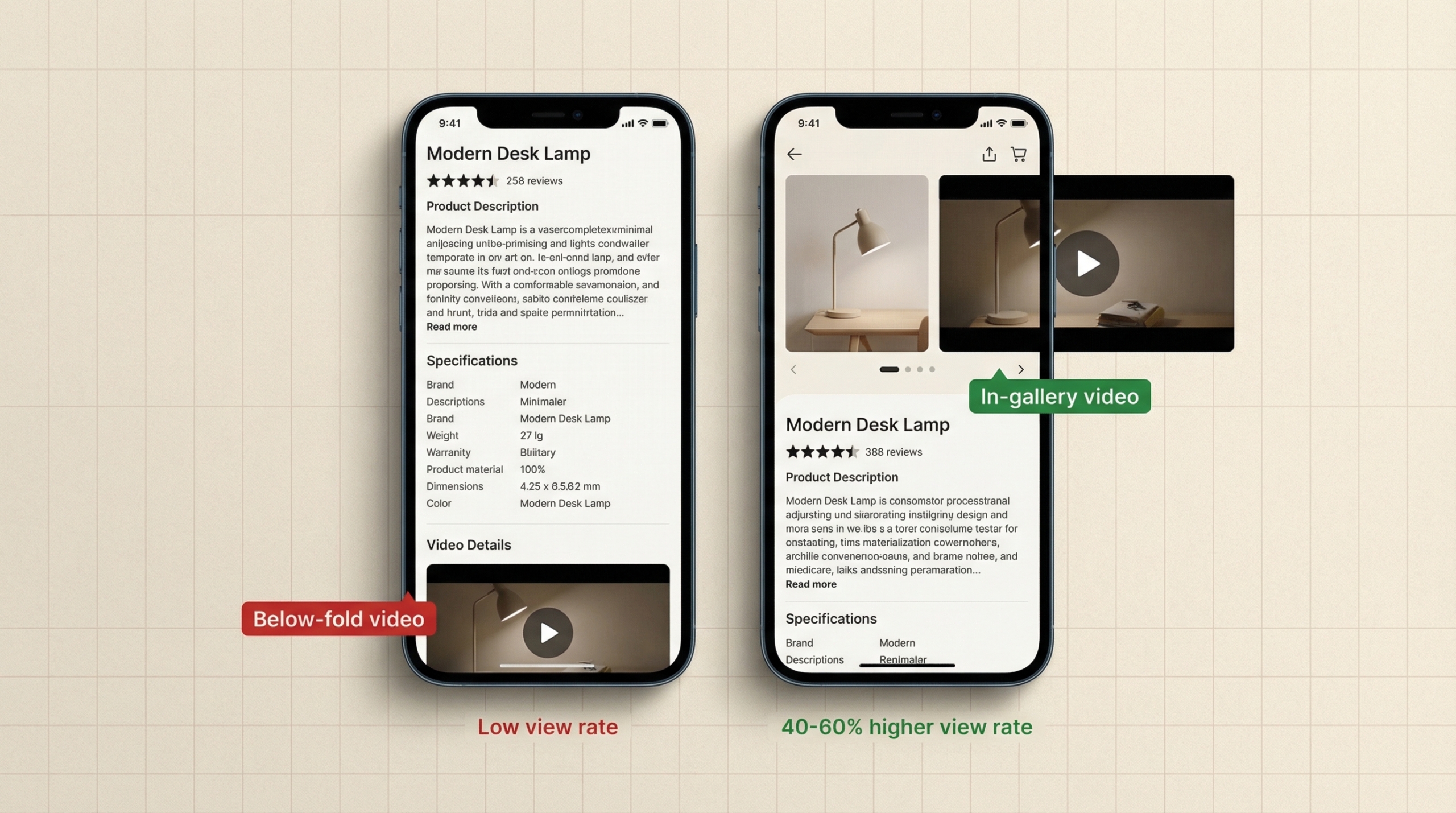
Swipeable video galleries
Mobile users swipe naturally between images. Video embedded in a swipeable product gallery (where the user swipes to video from photos) outperforms video placed below the product description by 40–60% in view rate.
Ecommerce Website Video Optimization Checklist
Use this before publishing any product video.
Technical
- [ ] MP4 format, H.264 codec (maximum compatibility)
- [ ] Hosted on external CDN (not local server)
- [ ] File size under 100MB for product page video
- [ ] Poster/thumbnail image specified (loads before video)
- [ ] loading=”lazy” for below-fold videos
- [ ] Mobile aspect ratio correct for placement location
- [ ] Captions or subtitle file attached for accessibility
Content
- [ ] Product visible within first 3 seconds
- [ ] Key product features shown within first 10 seconds
- [ ] Natural lighting shot included (not just studio)
- [ ] Scale reference visible (model, hand, room context)
- [ ] Product in motion (moving, used, worn)
- [ ] No copyrighted music without license
SEO
- [ ] Video title and description include primary keyword
- [ ] Schema markup added (VideoObject) for SEO indexing
- [ ] Video sitemap submitted to Google Search Console
- [ ] Thumbnail image optimized (alt text, file name with keywords)
Conversion
- [ ] Product name and price visible in video or overlay
- [ ] CTA (Add to Cart) accessible without scrolling after video
- [ ] Video duration under 90 seconds for product demo
- [ ] Shoppable tags added if using shoppable video platform
Analytics
- [ ] Video view tracking enabled (Google Analytics 4 event)
- [ ] Video completion rate tracked
- [ ] Add-to-cart attribution from video tracked
- [ ] A/B test set up (video vs. no video) if first video on a PDP
[IMAGE: A printable one-page checklist version of the above, designed as a clean PDF-style document with checkboxes, grouped by category (Technical, Content, SEO, Conversion, Analytics), with the ShopOS logo in the corner. Caption: “Download the checklist. Pin it in your Slack channel. Use it every time you add a product video.”]
How to Create Shoppable Product Videos at Scale
Producing shoppable product video for a full catalog is the scaling challenge after solving technical implementation.
Manual video production costs $200–$2,000 per product at professional quality. At 300 SKUs, the budget requirement is prohibitive for most brands.
AI video generation for product pages changes this.
ShopOS generates product demonstration videos from static product images. Input a quality flat lay or product photograph. The system generates a 15–30 second product video showing the item from multiple angles with appropriate motion, lighting transitions, and optional overlay text.
Output integrates directly with Shopify product pages. Videos link to SKU data in the commerce context graph. Performance data (view rate, click-through, conversion contribution) feeds back to optimize future video generation.
| Production Method | Cost Per Video | 300-SKU Catalog Cost | Timeline |
| Professional video production | $200–$2,000 | $60K–$600K | Weeks to months |
| AI video generation (ShopOS) | $1–$5 | $300–$1,500 | Days |
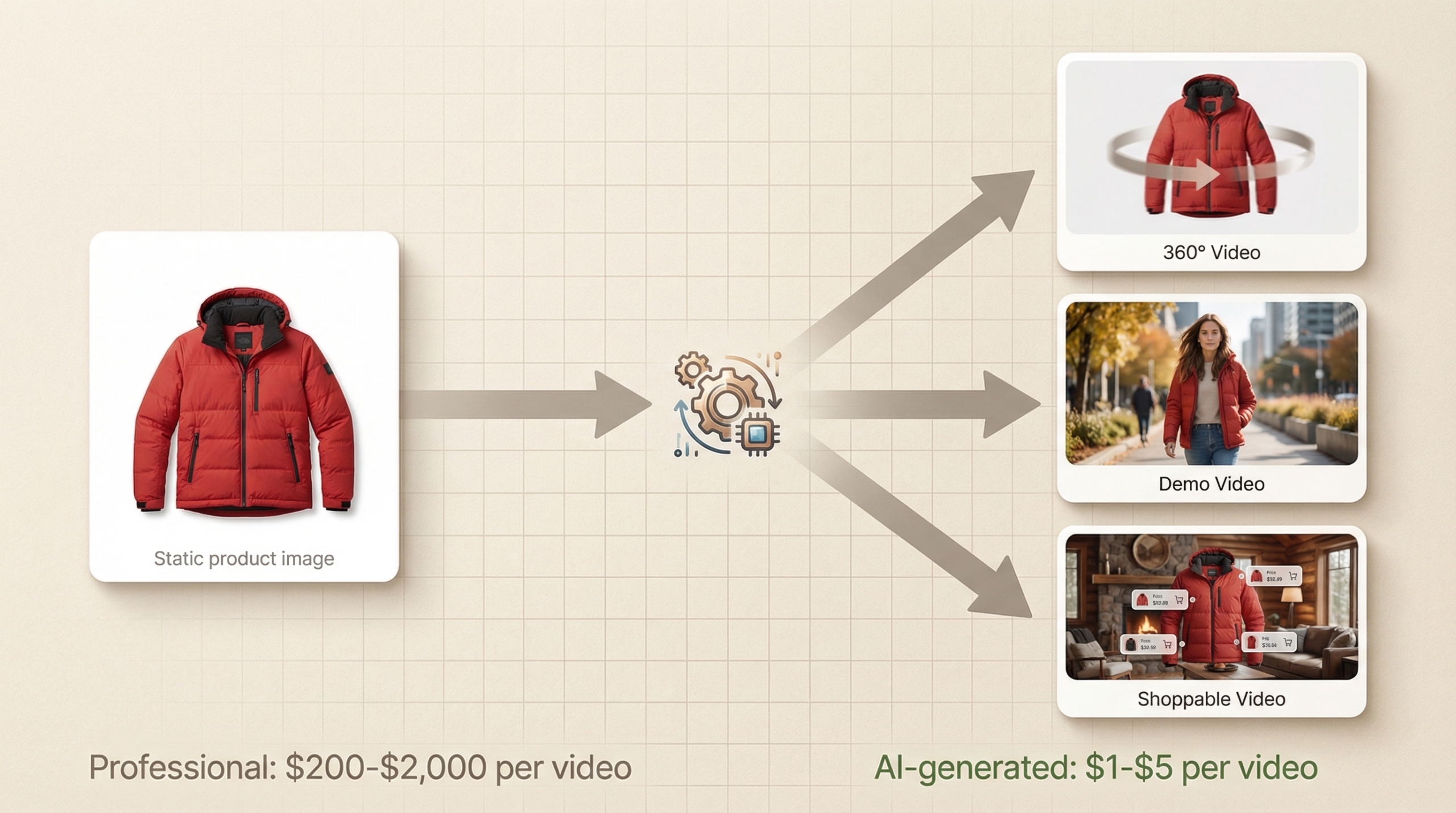
Combine AI video generation with a shoppable video platform integration: catalog-scale video production + in-video shopping functionality + performance tracking – all connected and learning from every interaction.
This is the ecommerce video stack that converts in 2026.
[Add video to your Shopify store with AI-generated product videos →]